Palimpsest is an instrument that learns your harmony.
Lean on fifths for a while and a sympathetic string tuned a fifth away starts answering every note you play; live in a scale for a week and it becomes a resonance the instrument carries with it. Play something else, and the old answers fade. What comes back is never your notes: it is a harmony that sounds like the way you play.
Palimpsest does not record your notes and never plays them back. It is not a MIDI capture, a looper or a delay: nothing is repeated. Playing wears the sound itself — slowly, the way footsteps wear a stone step.
It remembers the interval, not the note — in one memory per machine, shared by every instance in every project, that survives the session: close your DAW tonight, open it next week, it still remembers you. A fresh Palimpsest sounds like an ideal, untouched string. Everything else, you carve.
 {width=86%}
Quick start
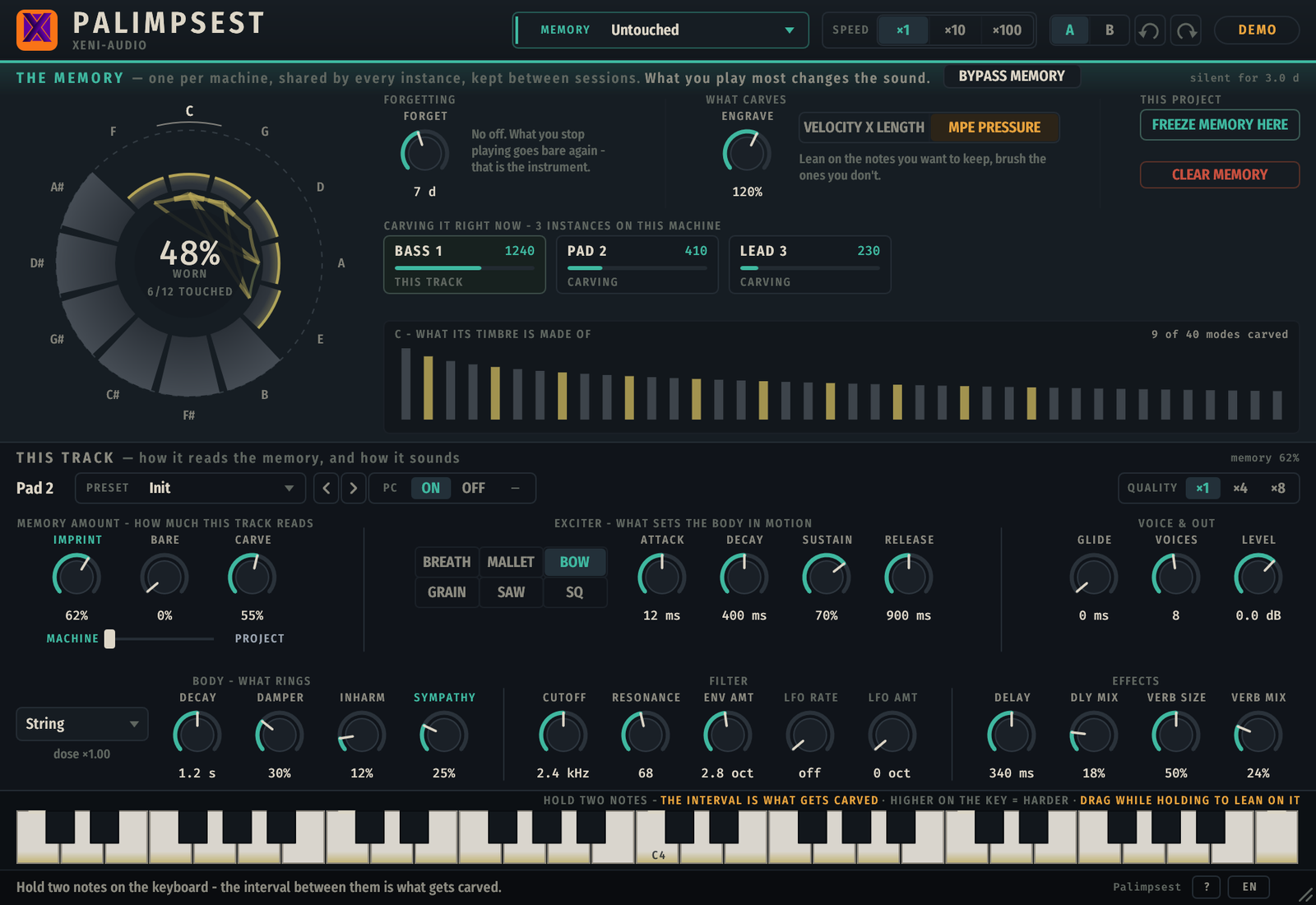
- Insert Palimpsest on an instrument track (VST3, CLAP, or AU on macOS) and send it MIDI — a keyboard, or a clip on the track. It makes no sound on its own: until the first note, the map says Listening for MIDI.
- Play. Hold two notes together, or one after another — the interval between them is what gets carved. Lean on the notes you want to keep.
- Turn Sympathy up: the strings tuned to the intervals you carved start answering your melody. Turn Imprint up to hear the memory colour the sound itself. Hold Bypass memory for the naked string, for comparison.
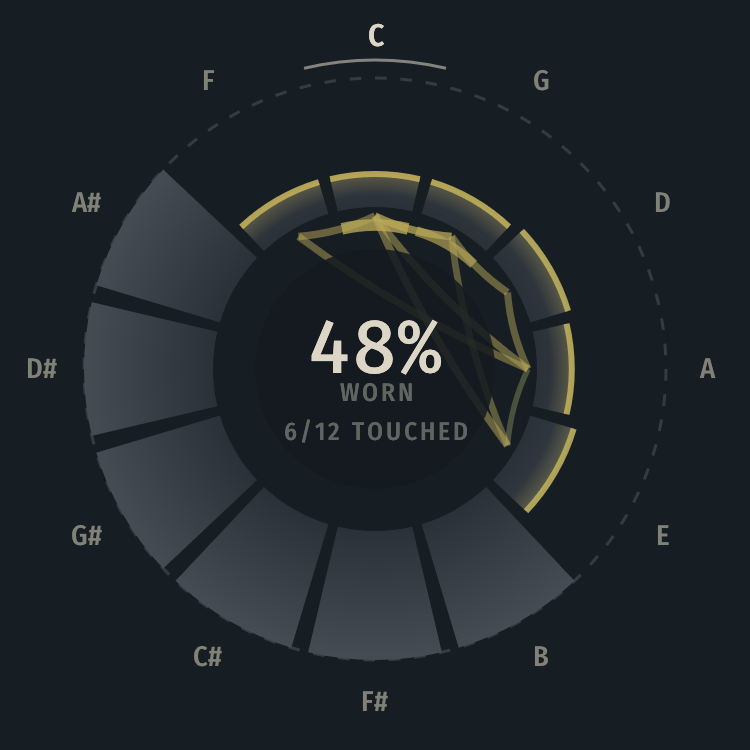
- Keep playing for a few minutes, then look at the map: your intervals are drawing themselves in.
The memory (top band)
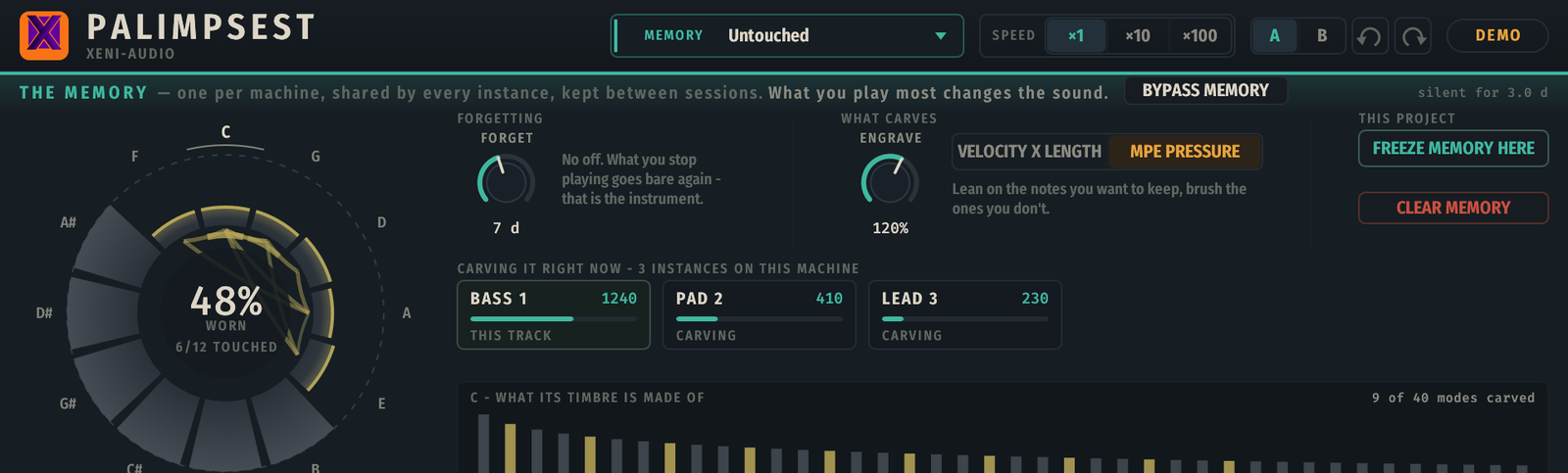
One memory per machine — this whole band is shared by every instance and belongs to you, not to the project.
- The map — twelve segments, one per pitch class. Ink shows what has been carved: warm when fresh, verdigris as it ages. Click a segment to inspect it in the detail strip (the 40 modes actually sounding).
- Forgetting — how long silence takes to erase the memory (in days, wall-clock: it forgets even while your DAW is closed).
- What carves / Engrave — how strongly playing writes.
- Velocity × length / MPE pressure — what counts as "leaning" on a note. Velocity × held length works with every keyboard; with an MPE controller, pressure engraves instead: press hard on what you want to keep, brush what you don't.
- Freeze memory here — keeps a copy of the current memory into the project file. The live memory keeps evolving; the snapshot does not. The Machine ↔︎ Project fader blends between the living memory and the snapshot.
- Clear memory — erases the live memory (asks twice). If you had played on it, it is backed up first into Your memories; a memory nobody ever played is not.
- Speed ×1/×10/×100 — makes the instrument remember and forget faster, to try things out. Not a demo mode: ×1 is real time. Machine-wide, resets to ×1 on reboot.
- The instance park — chips naming every Palimpsest currently running on this machine, with what each one is carving.
Shipped memories and yours
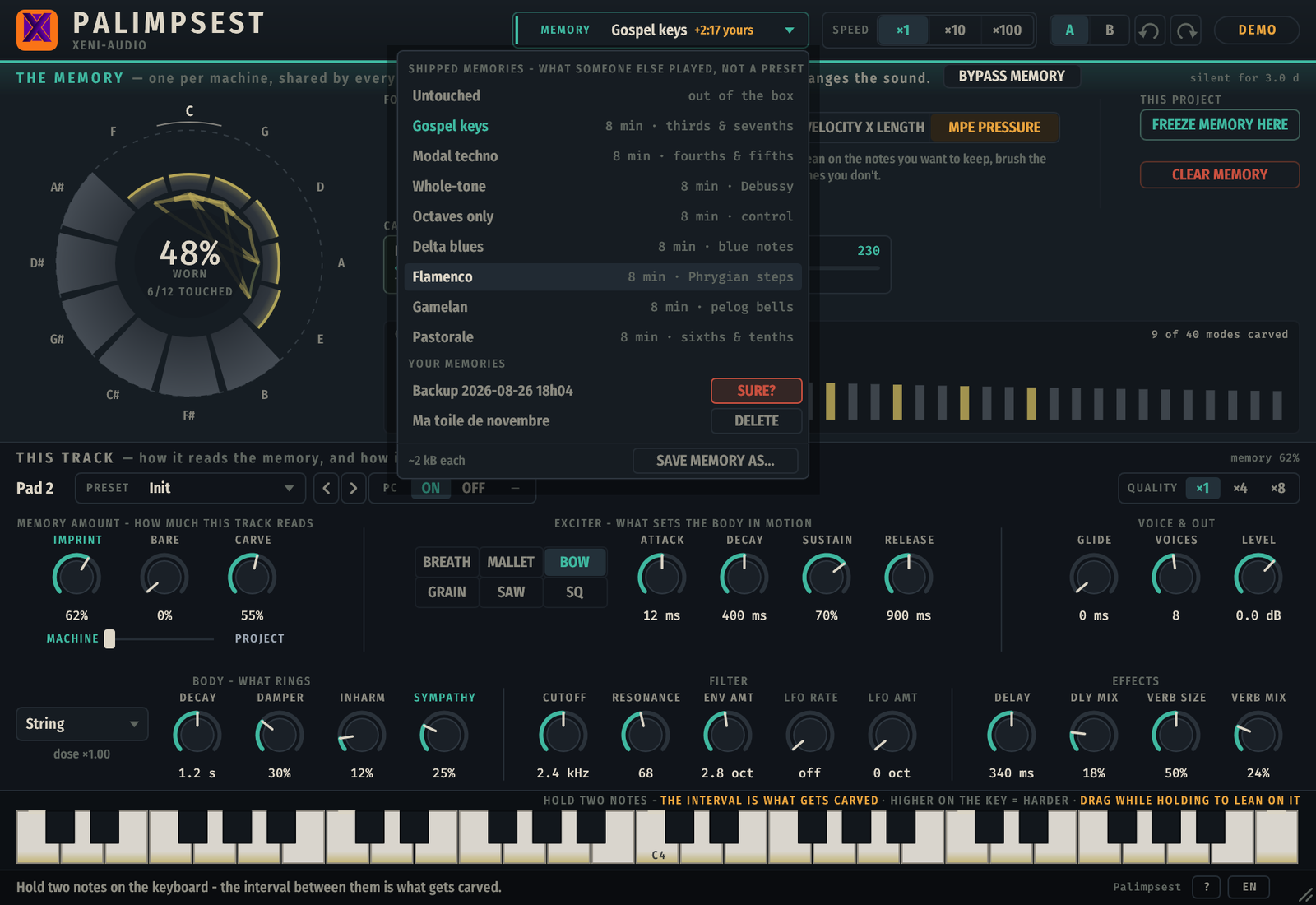
The Memory selector (top-right) loads a memory, not a preset:
- Shipped memories — memories someone already carved (Gospel keys, Modal techno, Whole-tone, Octaves only, Delta blues, Flamenco, Gamelan, Pastorale…). Loading one replaces the machine's memory — the current one is backed up first, automatically, into Your memories.
- +m:ss yours — appears next to the name once you have played on top of a loaded memory: it is becoming yours.
- Save memory as… — name and keep the current memory. Load, rename, delete from the same menu (delete asks twice).
This track (middle band)
Everything below the memory band is per-track and saved in the project, like any plugin. Hover any control: the info bar at the bottom of the window explains it — in English, French, German, Spanish, Italian or Portuguese: click the language chip at the right end of the bar (the choice is kept for every instance on this machine). Double-click any knob to return it to its default.
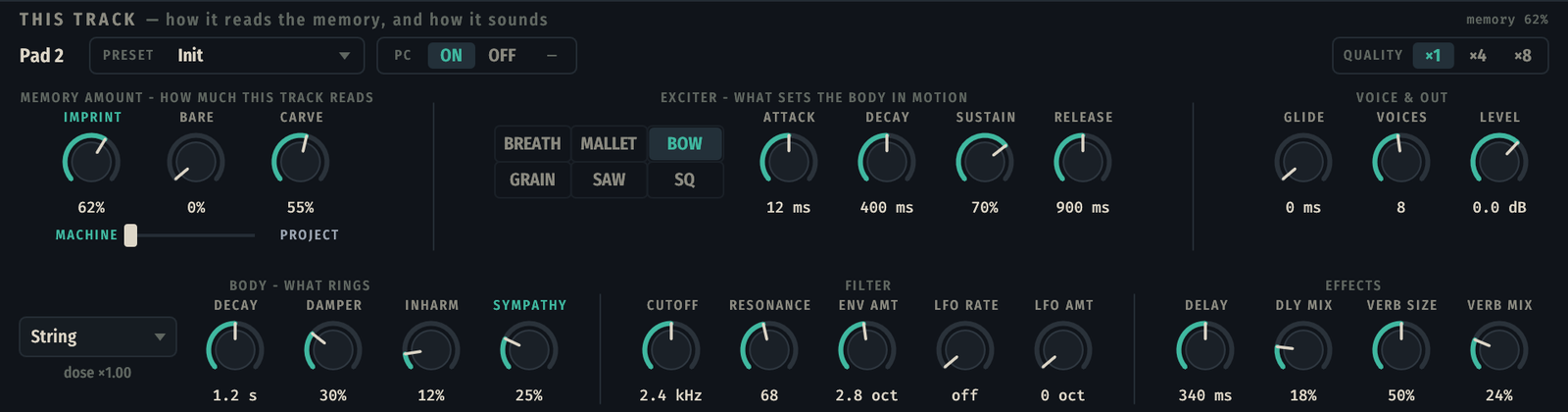
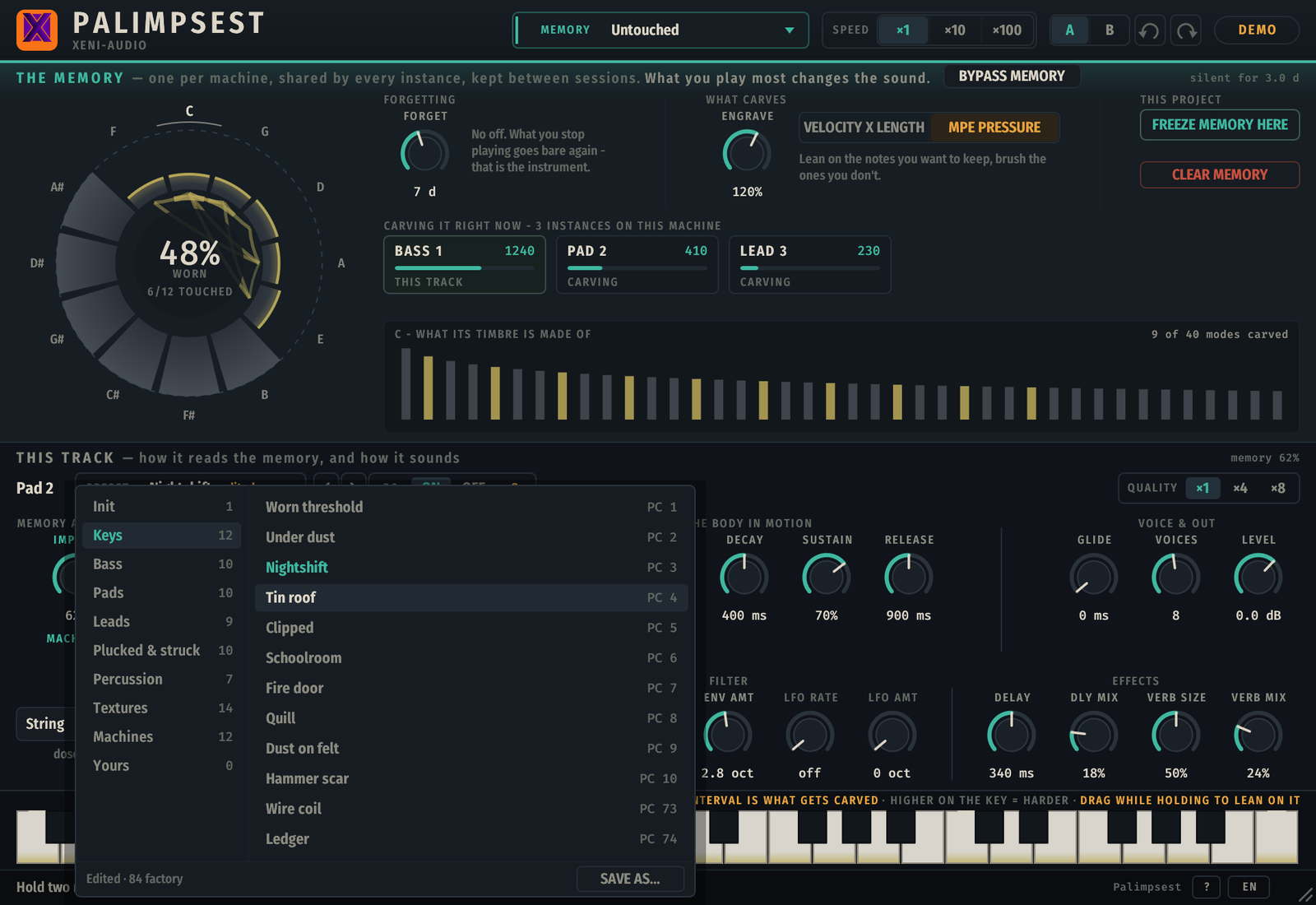
Preset and Program Change
Preset opens the library: 85 factory sounds in 9 categories, plus yours (Save as… — factory names are reserved). Edited appears when you moved away from the loaded preset. PC On lets MIDI Program Change recall presets by number (PC n = preset n; your own presets follow after 85).
Memory amount — how much this track reads
- Imprint — bare to sedimented: this track's memory cursor. It never writes, it only reads.
- Bare — 0 = the full carved timbre from the first note; 100 = near-sine out of the box, the memory adds everything back.
- Carve — 0 = the memory only adds; 100 = it also takes away where you never play. The track specialises.
- Machine — Project fader — 0 reads the living machine memory, 100 reads the snapshot saved into this project. Memory off appears in the band's corner when Imprint and Sympathy are both at 0: the track is then a plain modal synth.
Body — what rings
- The body selector — String, Bell, Glass… Each body has its own mode ratios, measured dose and tilt; the menu shows every body's dose so you can compare before you pick.
- Decay — how long the body rings after each strike, in seconds at C4. Long values turn any exciter into a drone.
- Damper — what stops a note. 0 = the body rings on after you let go, as an undamped string does. (Release stops the push; Damper silences the ring.)
- Inharm — from in tune to metallic: spreads the overtones and adds drive. A little thickens, a lot clangs.
- Sympathy — how much the partner strings answer: the ones tuned to the intervals your memory carved. An instrument carved in fifths answers the fifth.
Exciter — what sets the body in motion
- Breath / Mallet / Bow / Grain / Saw / Sq — what pushes the body. Saw and Square switch the source itself; the others shape the noise.
- Attack / Decay / Sustain / Release — the envelope of the push, not of the sound: Sustain is how hard the exciter keeps pushing while the key is held (everything on Bow and Breath, almost nothing on Mallet), Release is how fast the push stops — the ring that follows is Decay.
Filter — the ladder, after the body
- Cutoff — the ladder's corner, in absolute hertz, blended with a fixed 50 % keyboard follow.
- Resonance — emphasis at the cutoff: it growls instead of diverging, and above about 130 it sings on its own — the filter becomes an oscillator.
- Env amt — how far the cutoff opens on each note, then closes, in octaves. This is where the pluck comes from, not from a fixed cutoff.
- LFO rate / LFO amt — the only thing in the engine that moves cyclically during a note; at 0 it is off. Amt sets how far it swings the cutoff.
Voice & out
- Glide — portamento: the modes re-tune toward the new pitch over this time.
- Voices — the polyphony budget (the newest note is sacred — stealing takes the oldest tail first).
- Level — output trim.
- Quality ×1/×4/×8 — oversampling of the ladder's nonlinearity. Costs CPU, adds zero latency.
Effects
- Delay / Dly mix — the delay's time and how much of it you hear.
- Verb size / Verb mix — the reverb's size and level.
Outputs — Main, Bare, Wear
Palimpsest has three stereo outputs. On its own track you hear the first one; the other two are stems your DAW can pick up on other tracks (in Live: Audio From → Palimpsest → Bare or Wear, the way you take the individual outs of a drum machine).
- Main — the instrument, as always.
- Bare — the same notes played by a fresh Palimpsest: empty memory, no sympathetic strings. The melody, untouched.
- Wear — exactly what your memory adds to Main: the carved overtones and the sympathetic strings. On an empty memory it is silence, and Bare is Main.
Keep the melody alone on Bare and put your own effects on Wear; or send the two to different places in the mix. Nothing is computed for a stem until you connect it, so a track that only uses Main costs what it always did. (Bitwig and CLAP hosts choose the output configuration in the plugin's I/O settings.)
A/B, undo, track name
- A/B — two live slots covering the memory settings and this track's sound; leaving a slot stores what you leave.
- Undo/redo (Ctrl+Z / Ctrl+Shift+Z) cover every track gesture. The memory is not a gesture: it is never undone.
- Track name — comes from the DAW automatically (VST3). Rewrite it if you like; empty the field to get the DAW's name back.
The keyboard
The on-screen keyboard (C2–C6) plays and carves exactly like MIDI input:
- Click height sets velocity/pressure — the higher on the key, the harder.
- Hold two notes: the interval between them is what gets carved.
- Sustain pedal (CC64) and channel/poly aftertouch are honoured; full MPE is supported.

The window
Drag the grip in the bottom-right corner to resize, from 70 % to 320 %. The size is yours: it survives reopening and travels with the project. (Under Cubase/Nuendo on Windows, resize with the host's own window frame instead.)
Demo and activation
Unlicensed, the instrument goes silent for 5 seconds every minute — but it still carves: your playing keeps engraving the memory, which is exactly what Palimpsest is about. Everything else works.
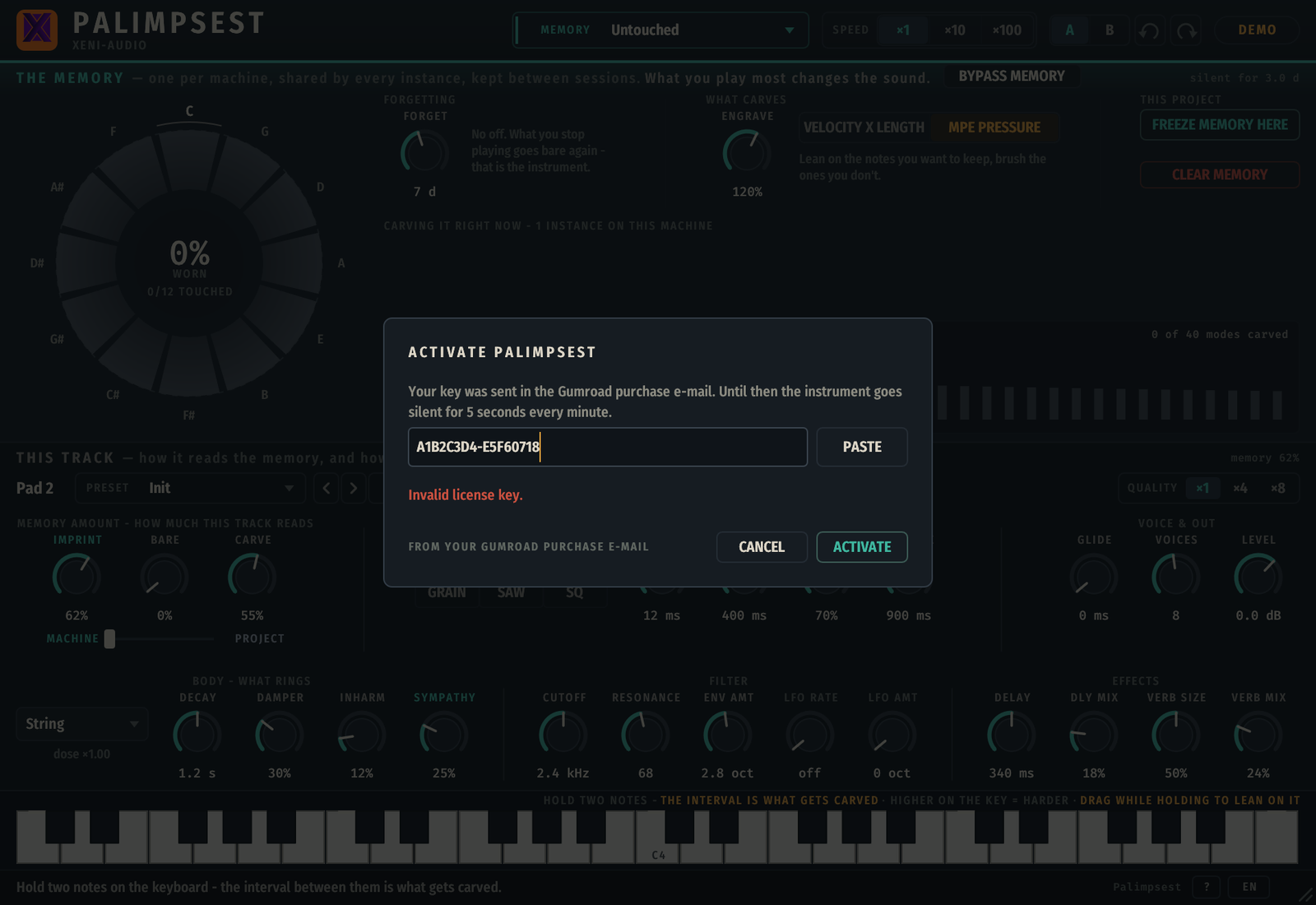
Click the DEMO badge and paste the key from your purchase e-mail (Ctrl+V works in the field). Activation on one instance unlocks every instance, including ones whose window you never opened. Once activated the badge disappears, and the licence is remembered on this machine — offline, no server is ever contacted on startup.
Where things live
| What | Where |
|---|---|
| The machine memory | ~/.local/share/XeniAudio/Palimpsest/memory.bin (Linux) · %APPDATA%\XeniAudio\Palimpsest (Windows) · ~/Library/Application Support/XeniAudio/Palimpsest (macOS) |
| Named memories & backups | …/Palimpsest/memories/ |
| Your presets | …/XeniAudio/Palimpsest/presets.txt (config dir) |
| Licence key | …/XeniAudio/Palimpsest/license.key (config dir) |
The memory is user data: uninstalling the plugin does not delete it.
Formats
VST3 and CLAP on Linux, Windows and macOS; Audio Unit on macOS (universal, macOS 10.13+). One instance is one voice of the same shared memory — use as many as you like.
Palimpsest — Xeni-Audio. The instrument that remembers how you play it.
Something unclear, or missing from this manual? Write to support@xeni-audio.com.